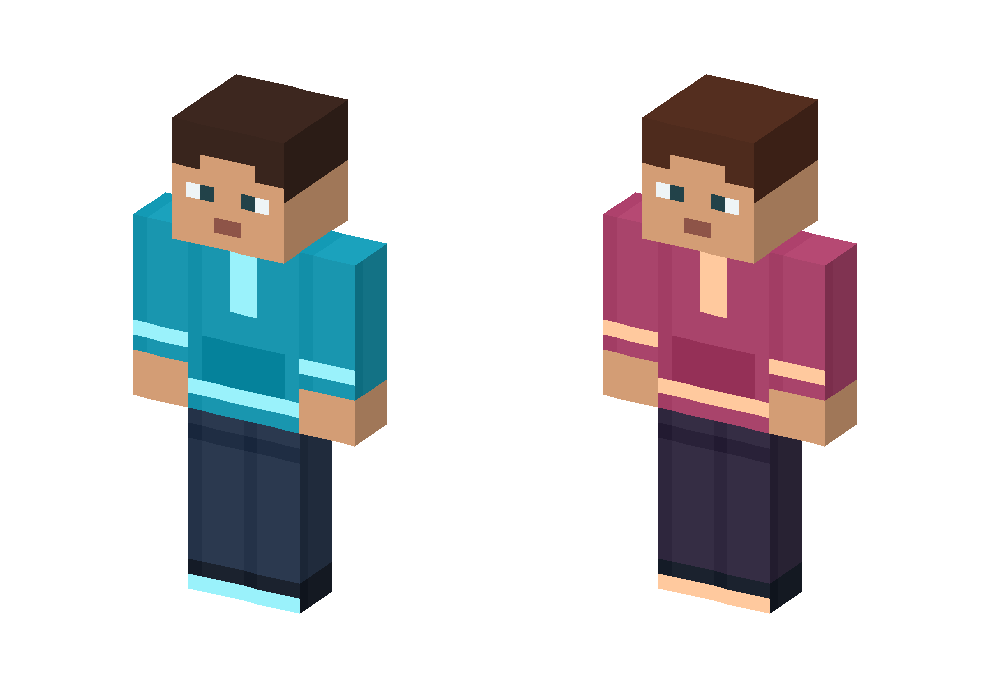
A Mojo Launcher skin download lets you change the character you see while playing Minecraft Java Edition on Android. Start by saving a Minecraft skin as a PNG texture, then apply it through the account or skin system used by your game profile.
You can choose a boy skin, girl skin, hoodie, PvP outfit or another design. The important part is downloading the texture file rather than a screenshot of the character. Below are direct PNG downloads and installation options for MojoLauncher, also known as MJLauncher.
Download Mojo Launcher Skins
Choose either of our original skins below. Each button downloads the actual 64 × 64 PNG texture directly from this website. Both designs use the Classic (wide-arm) model. The character images are previews of those same texture files.
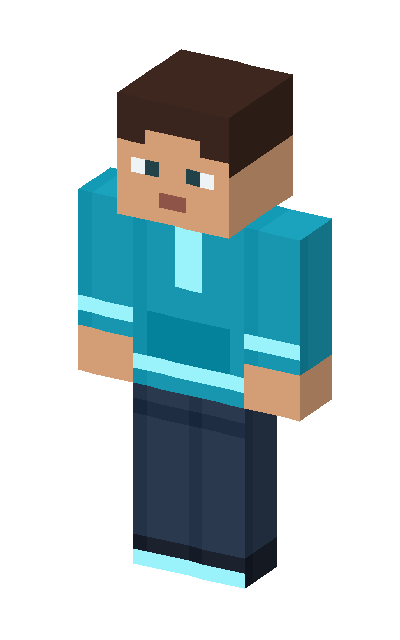
Cyan Hoodie
A cyan hoodie with pale blue trim, dark trousers and matching shoes.
PNG · 64 × 64 · Classic
Download Cyan Hoodie PNG
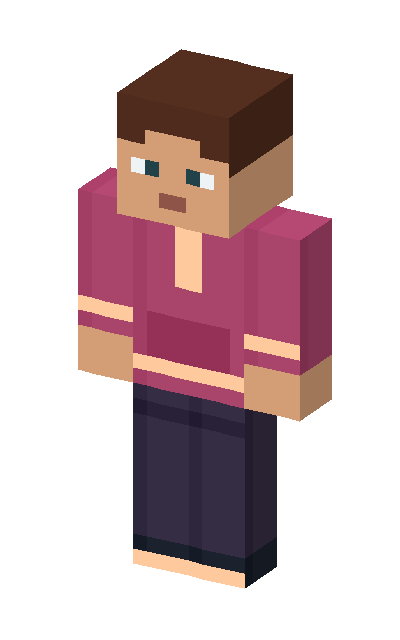
Rose Explorer
A rose hoodie with warm peach trim, dark trousers and matching shoes.
PNG · 64 × 64 · Classic
Download Rose Explorer PNG
Want both designs? Download the complete skin ZIP and extract it to find the two PNGs and an instruction file. This ZIP is a collection of skin files; extract it before uploading a PNG to your account.
These textures were created for MojoLauncher.net and are free to use, edit and share under CC0 1.0. Save the PNG in your phone’s Downloads folder, then follow the account setup steps below.
Choose the Right Skin File
- File type: PNG skin texture, rather than JPG, a rendered preview or an Android APK.
- Dimensions: 64 × 64 pixels is the usual modern Java skin layout. Older 64 × 32 layouts are also used.
- Arm model: Classic uses wider arms; Slim uses narrower arms. Match the model to the design.
- Image layout: The downloaded picture looks like a flat arrangement of body parts. Minecraft wraps that texture around your character.
Renaming a JPG to .png does not convert it into a skin. Use the PNG download buttons above to get the original texture. If you edit a skin, preserve its pixel dimensions and layout when exporting it.
How to Upload a Skin With a Microsoft Account
Need to add or select that account first? Follow the Microsoft account setup steps in Mojo Launcher, then return here to apply your skin.
If you play Java Edition with a Microsoft account that owns the game, use the account’s Java skin settings. The skin belongs to that account, so select the same account when you return to Mojo Launcher.
- Save your chosen skin PNG on your Android device.
- Open Minecraft’s Java skin settings in your browser and sign in.
- Select the Classic or Slim model that matches your design.
- Choose the downloaded PNG, upload it and confirm the change.
- Close Minecraft if it is running. In Mojo Launcher, select that Microsoft account and launch your game profile again.
You can also manage skins through the official desktop Minecraft Launcher. Minecraft provides its own Java skin customization guide. The desktop launcher’s Skins tab is separate from the menus in Mojo Launcher.
Using an Ely.by Skin
Ely.by hosts a skin catalog and an alternative skin system. You can choose a catalog design or upload your own texture to that service. Applying a skin there requires your game setup to load Ely.by skins; uploading it does not change the skin attached to your Microsoft account.
- Sign in on Ely.by and select or upload your skin.
- Confirm that the new design is selected for your Ely.by profile.
- If your launcher build offers Ely.by sign-in, select the corresponding account. Otherwise, use a compatible skin-loading setup supported by your game profile.
- Restart the game and check your character in third-person view.
Account menus vary between launcher builds. Check the available options rather than looking for a button that may belong to a different release. Ely.by’s skin system documentation explains its texture service and supported integrations.
Using a Local PNG With a Skin Mod
For a modded profile, CustomSkinLoader supports skins from online services and local files. Choose a download compatible with your Minecraft version and mod loader, then follow that release’s instructions.
- Install the compatible mod in the selected profile’s mods folder.
- Start the profile once so its configuration folders can be created, then close the game.
- With the default local-skin configuration, place the PNG under CustomSkinLoader/LocalSkin/skins/ inside that profile’s game directory.
- Name it YourUsername.png, replacing YourUsername with the player name you use.
- Launch the same profile and check the result. Skin-source priority can affect which texture loads.
This changes skin loading on your client. It does not automatically send your local PNG to other players.
Skin Resource Pack or Skin Changer?
A skin PNG, resource pack ZIP and skin-loading mod do different jobs. A resource pack may replace a default character texture for a particular game version. A skin mod adds another way to load character textures. Neither should be confused with uploading a skin to your Java account.
If you use a skin resource pack, check its supported Minecraft version and instructions. Changing a default texture locally does not guarantee that other players will see your chosen character. For an account-based skin, use the upload method above.
Fix a Skin That Is Not Showing
- Wrong account: Check that the account selected in Mojo Launcher is the one whose skin you changed.
- Wrong file: Open the file details and confirm it is the PNG texture with the expected dimensions.
- Wrong model: If the arms look broken or have gaps, compare Classic and Slim.
- Old session: Exit the game, check your connection and relaunch after confirming the upload.
- Different profile: For mods, check the active profile’s game folder and its installed loader.
- Server behavior: Compare single-player with your server. A server plugin or a different skin service can change the result.
If the launcher itself needs updating, use the Mojo Launcher APK download. You can also set up custom touch controls or check the community help page for account and profile questions.